





Sharing a set list with your bandmates
After you've created a set list, you can share it with any bandmates who don't have Set List Maker. Read on for more details:
- To share a set list, select a show and then tap the Share Set List button. This opens a page that includes a preview of your set list, along with various settings to control the content and appearance of the list.
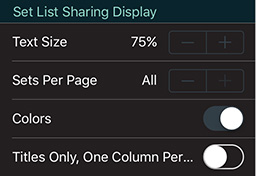
- You can set the text size and other options from the Appearance section.
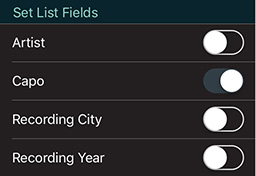
- You can control which fields appear on your set lists from the Song Fields section, and control their display order from the Field Display Order section.
- Set List Maker is designed to display your set list on a single page. If your show extends to more than one page, you might have to shorten your song titles or your entries in the other displayed fields so that each song fits onto one line. You can also adjust the text size in the Set List Sharing Display section, or try changing the page orientation from portrait to landscape. Alternatively, you can split your sets onto separate pages with the Set List Sharing Display > Sets Per Page setting.
- If you include the Notes field or a multi-line custom field on your set list, its contents will be collapsed to one line, separated by semicolons.
- When the set list appears the way you want it, you can use the buttons in the bottom toolbar to email it, print it, copy a plain-text version to the clipboard, open it in another app (iOS) or save it to a folder on your device (Android).
- Printing set lists requires an AirPrint-compatible printer on iOS, or a CloudPrint account on Android. If you do not have access to these resources, you can email or save the set list and print it from a computer.
- By default, emailed set lists will be a PDF file attached to an email message (example). If you would like to send set lists in an editable format, you can change the Set List Sharing Display > Email Format option to HTML. Then Set List Maker will send a simple HTML file that recipients can edit it in a text editor, an HTML editor or a word processor.
- If you send a set list in HTML format, your recipients' email software might display a plain-text preview of the set list by default. They can double-click the attachment, or save it to their desktop and double-click it, to see the fully-formatted set list.
- If you share a set list from the web interface, a Download button appears instead of Email and Print buttons. You can use this to save a PDF file of the set list to your computer, and then you can email or print that file.
Sharing all the songs in a show
Sharing a set list creates a document with one row of text per song. In some cases, you might want to share all the lyrics and chords, or additional info, for each song. You could do this to send lead sheets to a substitute band member, or to print hard-copy backups of all your songs. This works similarly to the set list sharing function:
- To share the songs in a set list, select a set list and then tap the Share Songs button. This opens a page that includes a preview of your songs, along with various settings to control the content and appearance of the songs.
- You can set the text size and other options from the Appearance section.
- You can control which fields appear on your set lists from the Song Fields section, and control their display order from the Field Display Order section.
- Set List Maker is designed to display each song on a single page. If your song extends to more than one page, you can turn on the Auto-Fit to Page option, and then each song's text size will be reduced if needed to fit on a page.
- If you include a multi-line custom field on your song pages, its contents will be collapsed to one line, separated by semicolons.
- If a song is set up to display a document by default (instead of the built-in Lyrics and Chords fields), that document will appear here instead of the other song data.
- When the songs appear the way you want them, you can use the buttons in the bottom toolbar to email it, print it, copy a plain-text version to the clipboard, open it in another app (iOS) or save it to a folder on your device (Android).
- Printing songs requires an AirPrint-compatible printer on iOS, or a CloudPrint account on Android. If you do not have access to these resources, you can email or save the set list and print it from a computer.
- If you share songs from the web interface, a Download button appears instead of an Email button. You can use this to save a PDF file of the songs to your computer, and then you can email that file.


